In brief
To plan a Waze road trip with multiple stops, build the full stop order outside Waze first, then open each leg in Waze as you reach the previous stop. Waze is excellent for live navigation, but its documented route workflow supports one intermediate stop, not a saved road trip itinerary with lunch, coffee, viewpoints, and a final destination.
Why Waze road trips need a separate plan
Waze is built around live driving. It is strong when you want traffic-aware navigation to the next place, police and hazard reports, and a familiar driving screen. The problem starts when the trip is not just “go to this destination.”
For a road trip, the real plan may look like this:
Budapest to Lake Bled, with coffee after about 90 minutes, lunch somewhere scenic, one viewpoint if it adds less than 20 minutes, and arrival before sunset.
That is not only a list of addresses. It includes timing, stop purpose, route trade-offs, and fallback decisions. Waze can navigate the next leg, but the full road trip brief needs to live somewhere that can remember all stops together.
What Waze can and cannot do today
Waze’s current help page for adding a stop says a route can include one stop before the final destination. If you need another place after that, the workflow is to start a new drive. The same official help page also shows that suggested stop categories such as food, gas, and parking are part of the single-stop flow.
Waze Planned Drives is different. The Waze Planned Drives help page describes scheduling a future drive to one destination and getting a reminder when it is time to leave. It also says a stop can be added before or during the drive, not while planning it.
| Need | Waze behavior | Road trip implication |
|---|---|---|
| Several planned stops | One intermediate stop per route | Keep the full itinerary outside Waze |
| Future departure reminder | Planned Drives schedules one destination | Useful for timing one leg, not storing the whole trip |
| Food, fuel, or parking during a drive | Suggested categories can be used when adding one stop | Good for an unplanned quick stop |
| A complete road trip order | Not a native Waze itinerary feature | Use a separate planner, then open each leg |
The Waze road trip workflow
Use Waze as the driving layer, not the planning layer. The clean workflow is:
Write the whole trip brief
Describe the origin, final destination, stop types, timing, route preferences, and detour limits before opening Waze.
Choose and order the real stops
Resolve actual restaurants, viewpoints, coffee stops, fuel stops, or rest breaks. Check whether the order still makes sense as one drive.
Save the next address somewhere easy
Keep every remaining stop visible in a planner, note, shared list, or the free Waze multiple stops planner.
Open only the next leg in Waze
Start Waze to the first stop. When you arrive, open the next stop as the next drive, then repeat.
Avoid phone work while driving
If the plan changes, pull over safely or let a passenger manage the next leg.
A sample Waze road trip plan
Imagine a drive from Vienna to Munich. A weak plan says:
Add coffee, lunch, and maybe a viewpoint.
A better Waze-ready plan says:
- Start in Vienna.
- Coffee near Linz, preferably close to the highway.
- Lunch around Salzburg, ideally with outdoor seating.
- Optional viewpoint only if it adds less than 20 minutes.
- Finish in Munich.
That plan can be used with Waze because each item becomes the next leg. The important work happened before Waze opened: choosing real places, deciding which stop is optional, and keeping the remaining sequence easy to access.
When to use Waze’s own Add a stop feature
Waze’s native Add a stop feature is still useful. Use it when the drive is already underway and you only need one quick stop before the destination.
Good fits:
- fuel before the final destination;
- one parking stop before an event;
- one food stop during a simple drive;
- a quick errand before going home.
Poor fits:
- a full sightseeing day;
- several meal and coffee stops;
- a multi-city itinerary;
- a trip where stop order changes the route quality;
- a drive where you want to compare the planned route against going direct.
For the exact native limit and basic steps, read the more focused Waze multiple stops guide.
How Ownway helps this specific workflow
Ownway is designed for the planning step before Waze. You can speak or type the drive you want, including rough stop ideas instead of perfect addresses. Ownway can resolve fitting places, order the itinerary, show the route trade-off, and keep the plan together.
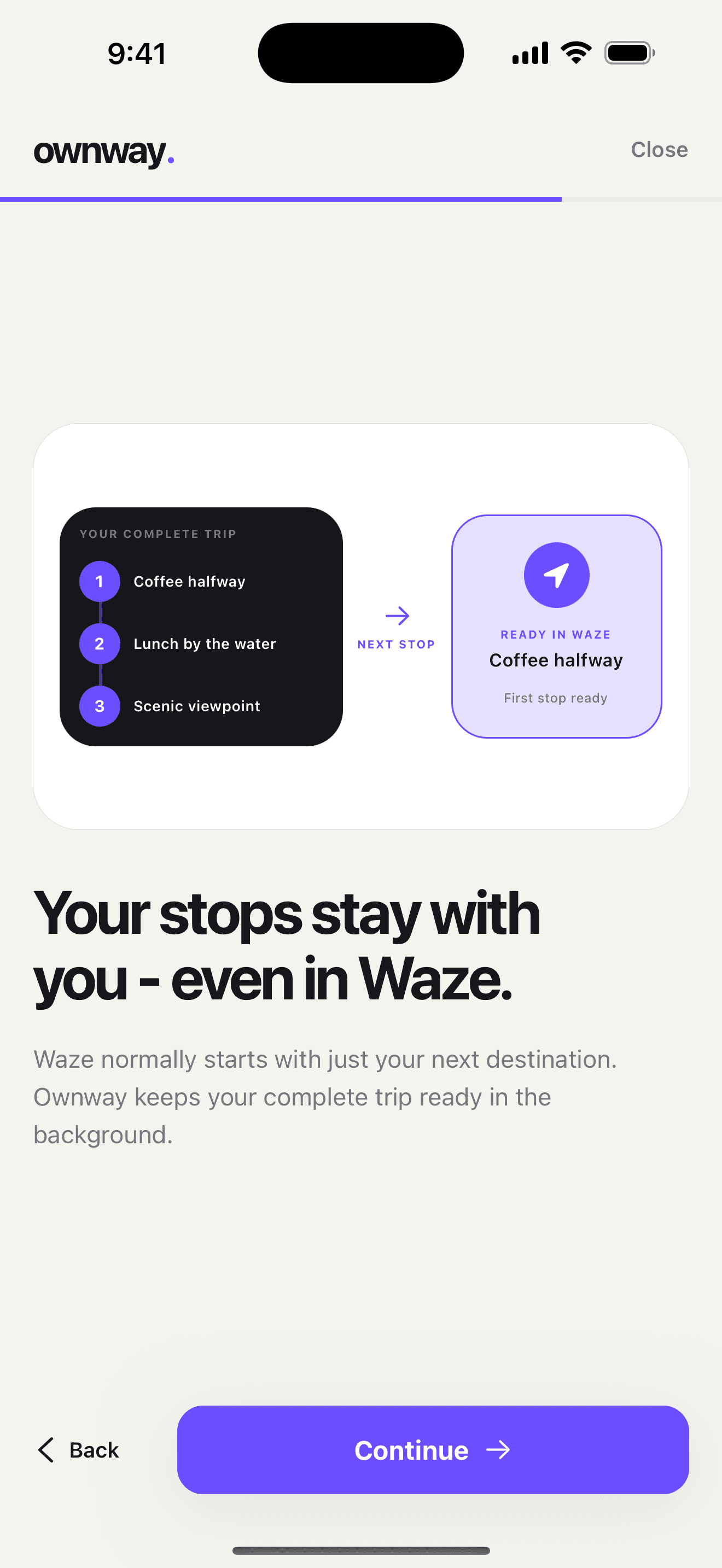
When you choose Waze, Ownway does not pretend to import every stop into Waze as one native route. Waze Companion keeps the full itinerary in Ownway and prepares the next Waze leg as the trip progresses. Waze stays the navigation app; Ownway keeps the road trip plan.
If you are still deciding the actual stops, start with how to find good stops along a road trip route. If you want the broader route-first method, use how to plan a road trip with multiple stops.
Frequently asked questions
- Can I plan a full road trip with several stops inside Waze?
- Not as one complete multi-stop itinerary. Waze supports one intermediate stop in a route, so longer road trips need a separate plan and separate Waze legs.
- Is Waze Planned Drives good for road trips?
- Waze Planned Drives is useful for one scheduled destination and leave-time reminders. It does not replace a multi-stop road trip itinerary.
- What is the safest way to use Waze for several stops?
- Set the complete stop order before leaving, open the next Waze leg only while parked or with a passenger helping, and avoid rebuilding the itinerary while driving.
Sources
- Add a stop to your routeWaze Help · Accessed August 25, 2026
- Plan a driveWaze Help · Accessed August 25, 2026